
How to Browse
Start Exploring Documents
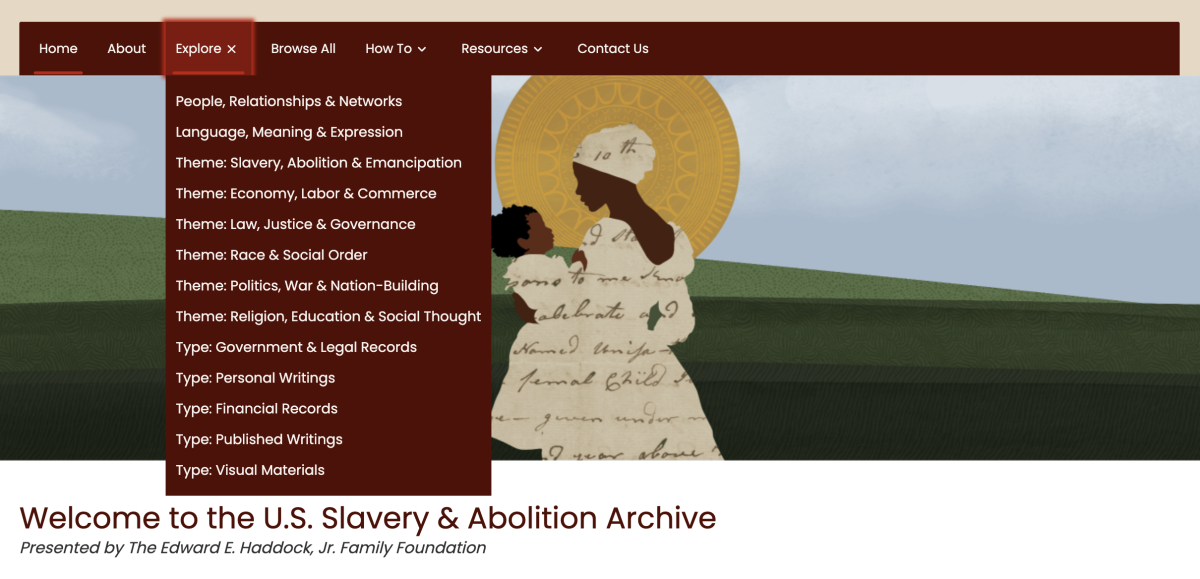
Click Explore in the navigation bar and select any option in the dropdown menu to browse records by topic, document type, or specific data points.
Nagivating Document Lists
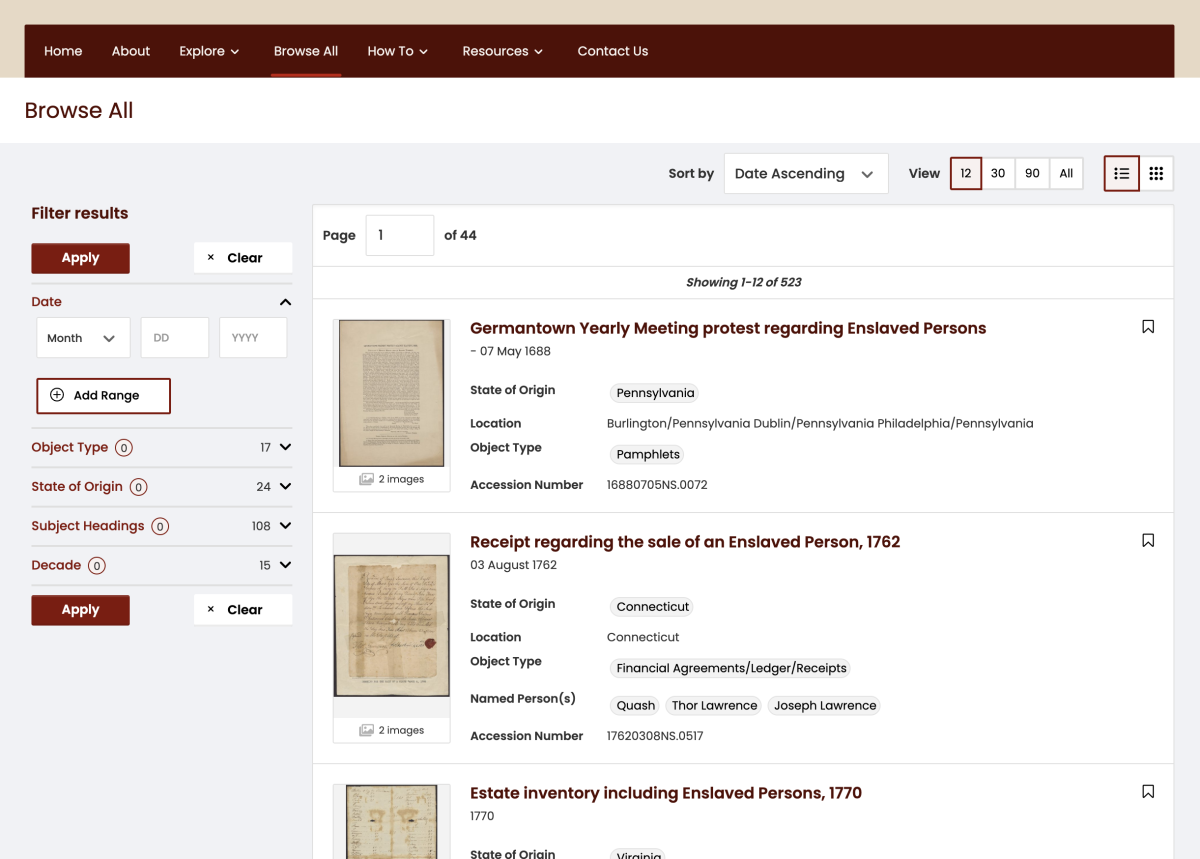
Records can be sorted by title and date with the default being the title. 12 records are initially displayed but you can expand the page to include 30, 90, or all the records within each area. Click the title or thumbnail or title from this list to navigate to your chosen record.
Viewing Document Details
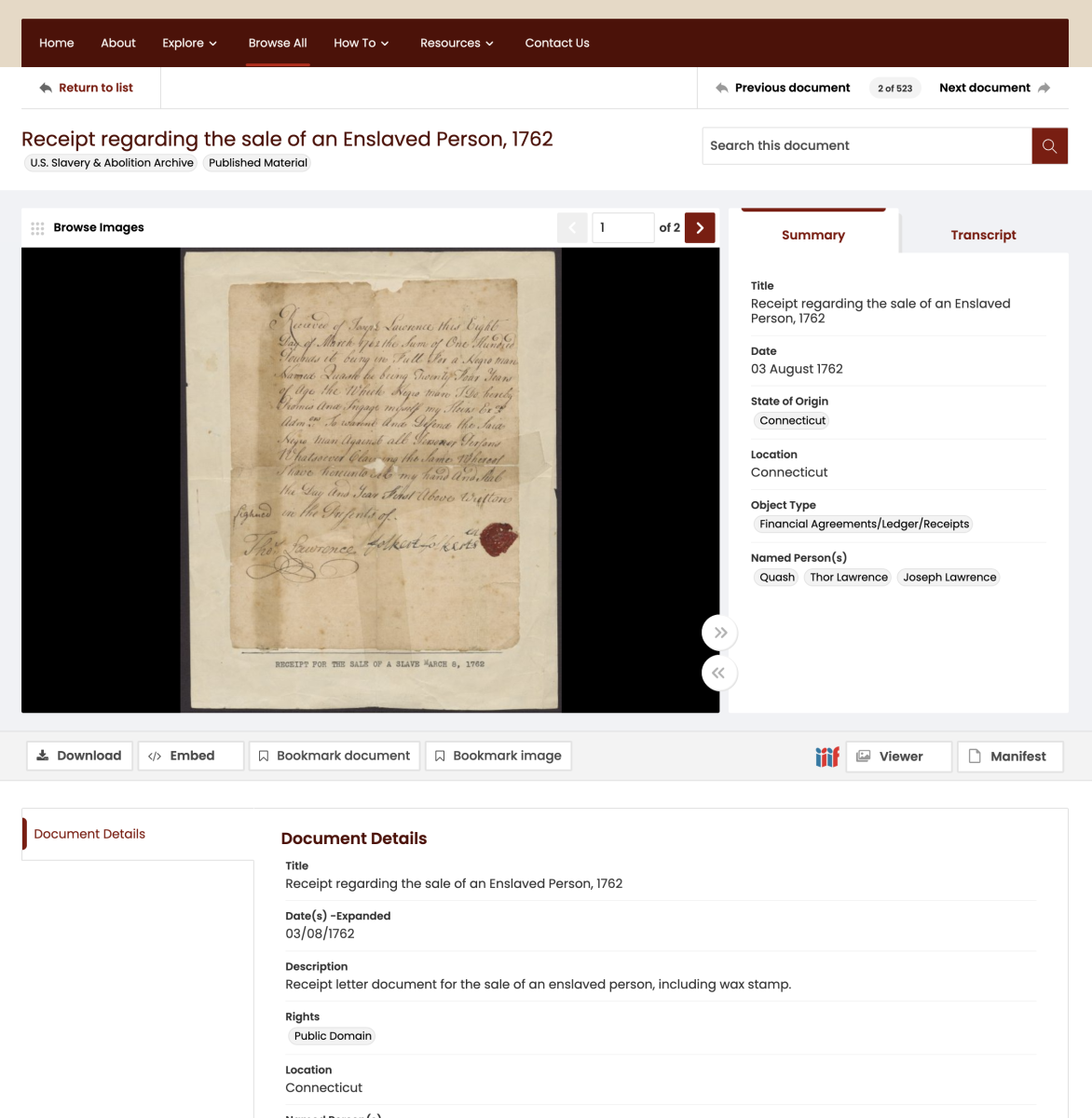
The 'Summary' tab provides a brief overview of the digitized item, including key fields, such as title, date, object type, subject headings, named person(s), and state of origin, where relevant. The full metadata that appears beneath the viewer/player provides more details, such as rights, biographical history/scope & content notes, description, contributor, location, date(s) expanded, creator, and language where relevant. Any metadata that appears within a gray bubble links to a list of all records cataloged with that term.
Using the Image Viewer
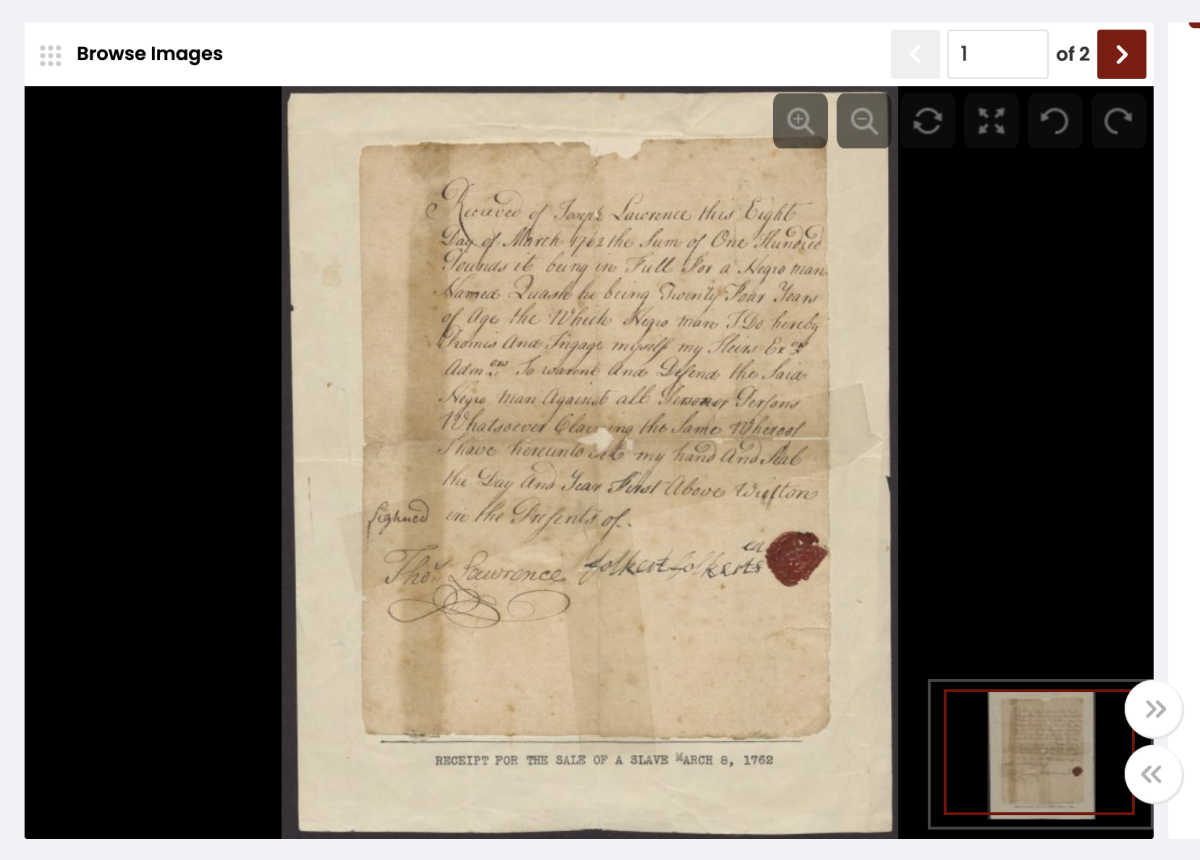
Hovering the cursor in the image viewer displays a menu with the following options in the top right of the viewing window:
- Zoom in or out
- Go home (resets the image to the default view)
- Toggle full page view
- Rotate left or right
Navigating Between Document Pages
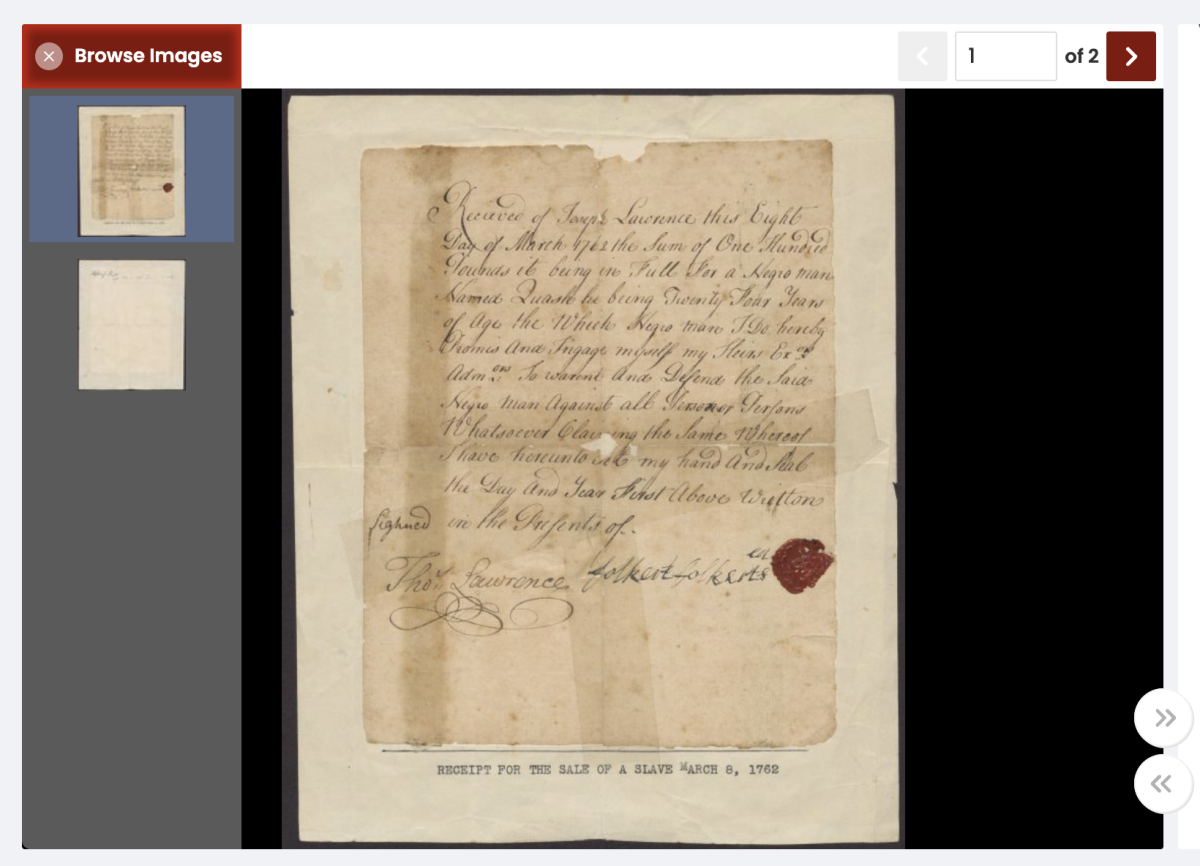
Navigate through any multi-page record by selecting Browse Images or by using the arrows to move between images. Use the page number input box on the top right to open a specific image within the record.
Downloading Metadata
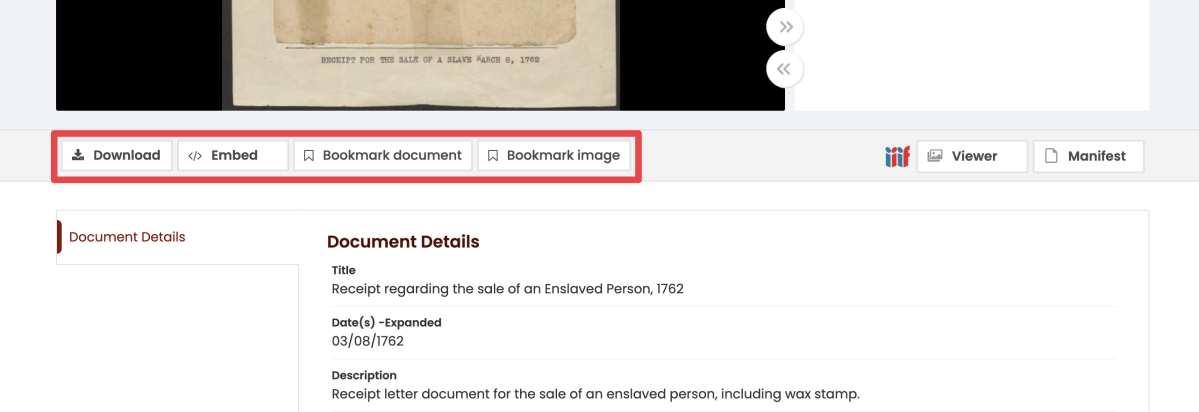
Click the Download button to open a pop-up window that allows you to save metadata and transcripts where available.
Select the Embed button to obtain a code to display the record elsewhere on another site using software such as an iFrame. Choose to include display of the Summary Metadata and/or Transcripts (where available), along with configuring the desired display image(s).
Bookmark the document or select items within a multi-image record for future reference in My Account. Learn more about these features in How to Use My Account.
Additional Viewing Options
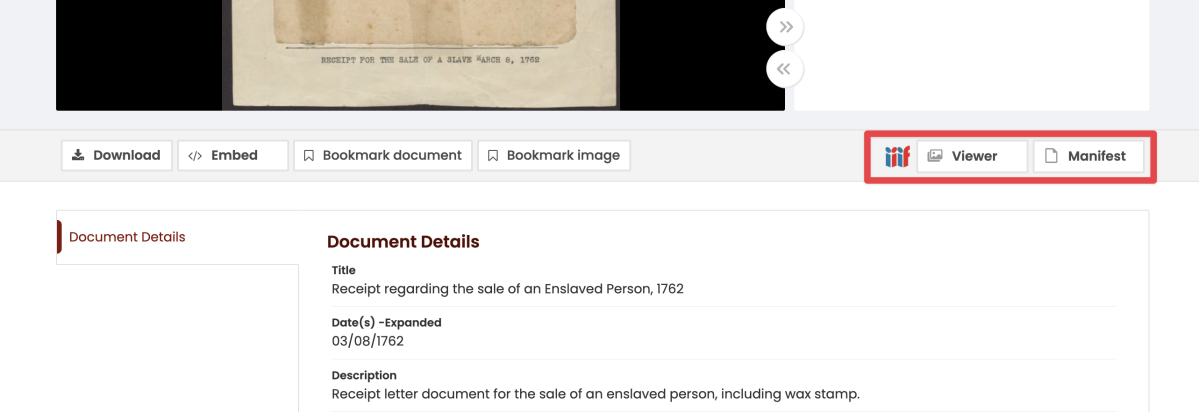
Find additional viewing options including the ability to compare images from multiple records using the IIIF Mirador Viewer.
Visit our How to Search for the right place to initiate your keyword search.
Start Exploring Documents
Click Explore in the navigation bar and select any option in the dropdown menu to browse records by topic, document type, or specific data points.
Nagivating Document Lists
Records can be sorted by title and date with the default being the title. 12 records are initially displayed but you can expand the page to include 30, 90, or all the records within each area. Click the title or thumbnail or title from this list to navigate to your chosen record.
Viewing Document Details
The 'Summary' tab provides a brief overview of the digitized item, including key fields, such as title, date, object type, subject headings, named person(s), and state of origin, where relevant. The full metadata that appears beneath the viewer/player provides more details, such as rights, biographical history/scope & content notes, description, contributor, location, date(s) expanded, creator, and language where relevant. Any metadata that appears within a gray bubble links to a list of all records cataloged with that term.
Using the Image Viewer
Hovering the cursor in the image viewer displays a menu with the following options in the top right of the viewing window:
- Zoom in or out
- Go home (resets the image to the default view)
- Toggle full page view
- Rotate left or right
Navigating Between Document Pages
Navigate through any multi-page record by selecting Browse Images or by using the arrows to move between images. Use the page number input box on the top right to open a specific image within the record.
Downloading Metadata
Click the Download button to open a pop-up window that allows you to save metadata and transcripts where available.
Select the Embed button to obtain a code to display the record elsewhere on another site using software such as an iFrame. Choose to include display of the Summary Metadata and/or Transcripts (where available), along with configuring the desired display image(s).
Bookmark the document or select items within a multi-image record for future reference in My Account. Learn more about these features in How to Use My Account.
Additional Viewing Options
Find additional viewing options including the ability to compare images from multiple records using the IIIF Mirador Viewer.
Visit our How to Search for the right place to initiate your keyword search.