
How to Search
Start Searching The Collection

A search box can be found in the masthead on every page. Look for the magnifying glass icon with the rollover text 'Search all records.' Use this search box to perform a simple keyword search across all available records. Results include both metadata and any available full-text transcripts and are displayed as a list sorted by relevance.
To apply Boolean search terms, you must perform an Advanced Search.
Advanced Search
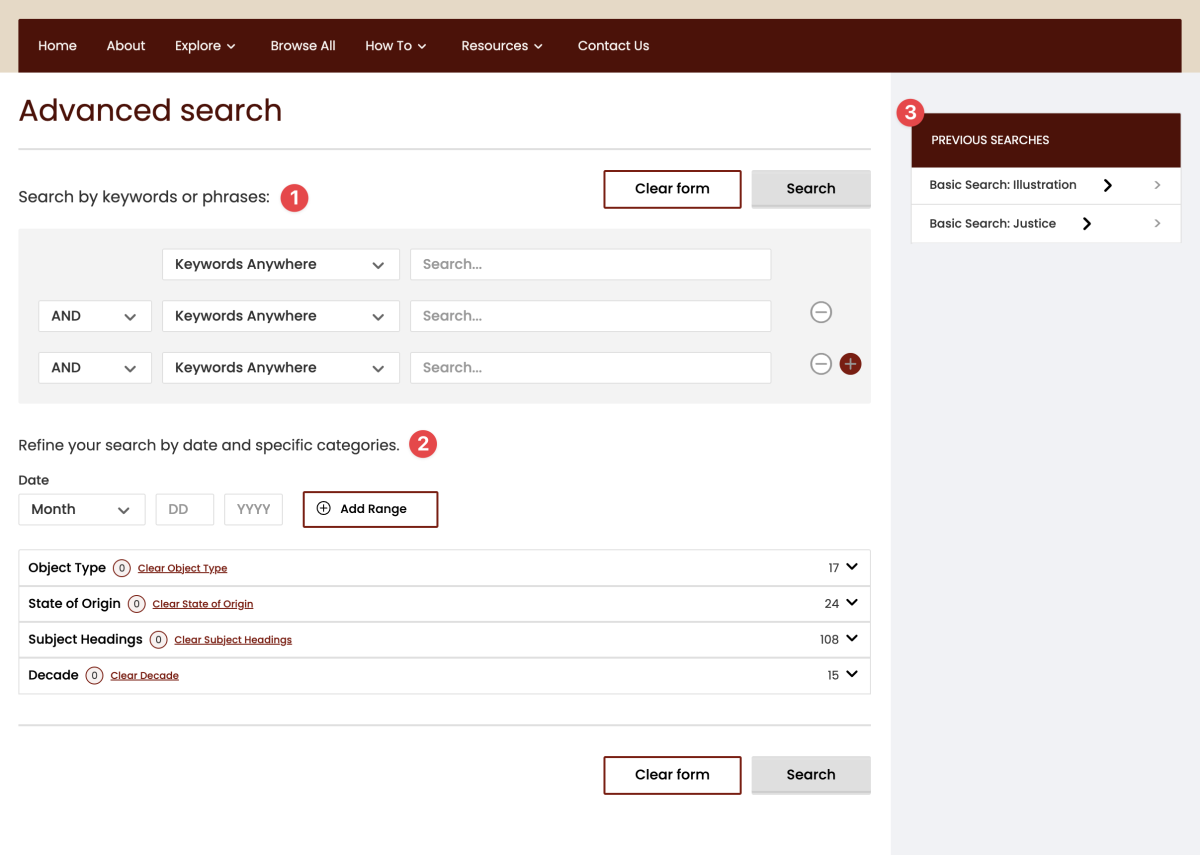
Access the Advanced Search page from the link that appears below the search box in the masthead.
You can perform a fielded search of any non-linked metadata from this page. In addition to these fields, Advanced Search allows users to add criteria such as date ranges and controlled vocabulary at the outset of a search, rather than performing a keyword search that must then be refined.
- Search for several keywords or phrases using the AND, OR, and NOT Boolean operators.
- Apply any desired filters and selections will display in the search criteria box at the bottom of the page. Click the Search button to run, or the Clear form button to clear all search criteria and begin a new search.
- Searches that have been run during the current session display on the right in the Previous Searches box. Simply click the hyperlinked terms to rerun the search.
Click Search and a list of results will display. Search criteria displays at the top of the page in the search criteria box, and from here the current search can also be saved to My Account. Learn more about the benefits of this feature in How to Use My Account.
Searching Within A Group Of Documents
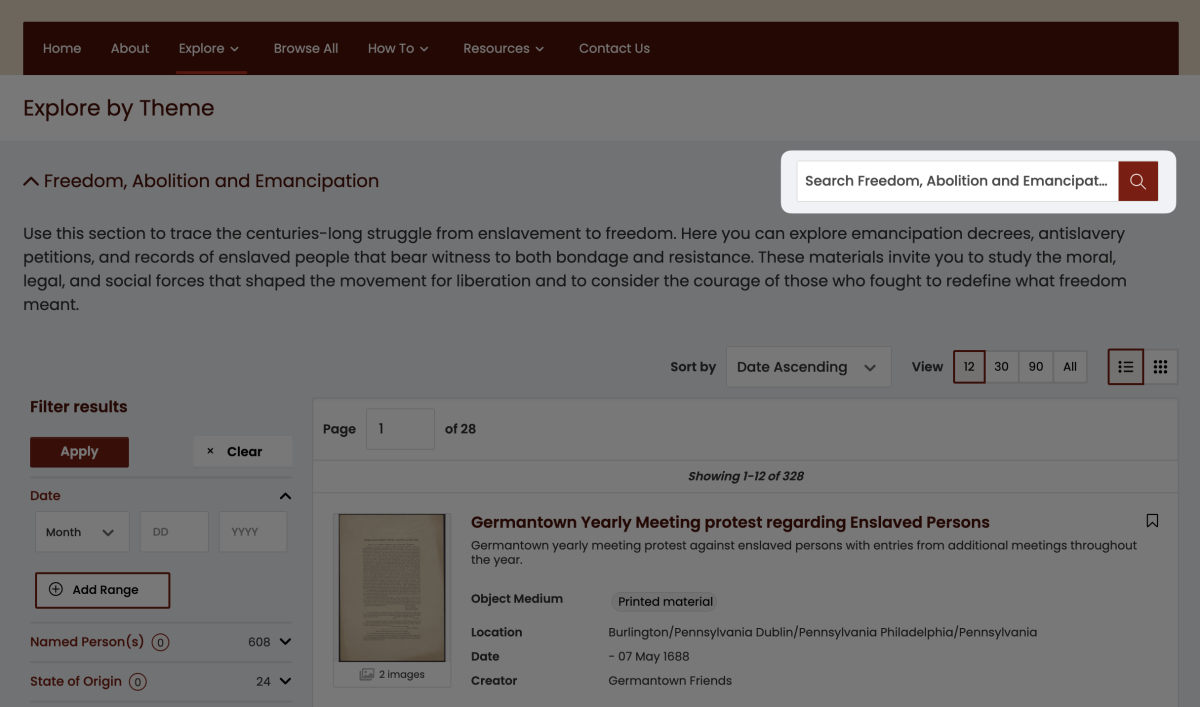
When exploring by topic, type, and data points, you can use the search box that appears to the right of the group title to search both the metadata and any available transcripts within that group of records. Results will display in the same tab but with details of the current search criteria, which can be shared or saved.
Searching Within A Document
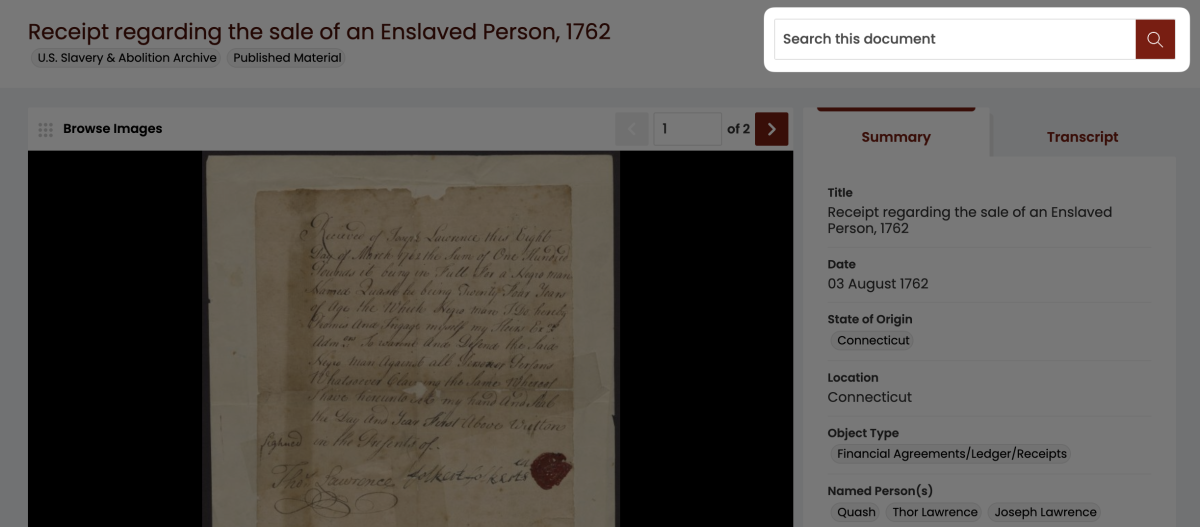
Using the search box that appears to the right of the title of a document, you can search both the metadata and any available transcripts within that record. Results will display in the same tab below the record highlighting hits with the document details and image (where relevant). These specific search results cannot be shared or saved, but you do have the option of bookmarking the document or image where the results were found.
Start Searching The Collection
A search box can be found in the masthead on every page. Look for the magnifying glass icon with the rollover text 'Search all records.' Use this search box to perform a simple keyword search across all available records. Results include both metadata and any available full-text transcripts and are displayed as a list sorted by relevance.
To apply Boolean search terms, you must perform an Advanced Search.
Advanced Search
Access the Advanced Search page from the link that appears below the search box in the masthead.
You can perform a fielded search of any non-linked metadata from this page. In addition to these fields, Advanced Search allows users to add criteria such as date ranges and controlled vocabulary at the outset of a search, rather than performing a keyword search that must then be refined.
- Search for several keywords or phrases using the AND, OR, and NOT Boolean operators.
- Apply any desired filters and selections will display in the search criteria box at the bottom of the page. Click the Search button to run, or the Clear form button to clear all search criteria and begin a new search.
- Searches that have been run during the current session display on the right in the Previous Searches box. Simply click the hyperlinked terms to rerun the search.
Click Search and a list of results will display. Search criteria displays at the top of the page in the search criteria box, and from here the current search can also be saved to My Account. Learn more about the benefits of this feature in How to Use My Account.
Searching Within A Group Of Documents
When exploring by topic, type, and data points, you can use the search box that appears to the right of the group title to search both the metadata and any available transcripts within that group of records. Results will display in the same tab but with details of the current search criteria, which can be shared or saved.
Searching Within A Document
Using the search box that appears to the right of the title of a document, you can search both the metadata and any available transcripts within that record. Results will display in the same tab below the record highlighting hits with the document details and image (where relevant). These specific search results cannot be shared or saved, but you do have the option of bookmarking the document or image where the results were found.